Cybersecurity Knowledge Base
CyberPedia
Your essential guide to cybersecurity threats, attacks, and defenses. Understand the risks. Protect your business.
BitLocker
Reading time: 6 min · Updated May 2026
IN SHORT
BitLocker is Windows' built-in full-disk encryption for Pro, Enterprise, and Education editions. It protects data at rest by encrypting the entire drive, which means a lost laptop or removed hard drive is far less useful to a thief without the right unlock method or recovery key.
BitLocker is excellent for stolen devices and decommissioned drives, but it does not stop phishing, malware, account takeover, or a malicious user who is already signed in. That is why BitLocker should be deployed as one layer alongside MFA, endpoint protection, and sensible recovery-key controls.
What BitLocker actually is
BitLocker is Microsoft's full-volume encryption feature for Windows. It encrypts operating system drives, fixed data drives, and removable media through BitLocker To Go so that data on the device is unreadable without the proper unlock credentials.
Its job is narrow but important: protect data at rest. If a laptop is stolen, or a drive is removed from a retired workstation, BitLocker helps prevent that storage device from turning into a data breach.
In managed environments, BitLocker also fits neatly into enterprise policy and device-management workflows through tools such as Group Policy, Microsoft Intune, Active Directory, Configuration Manager, and Microsoft Entra ID.
What BitLocker is built to do

Encrypt entire volumes
BitLocker protects whole drives rather than selected folders. That includes the Windows OS volume, secondary internal drives, and removable media protected with BitLocker To Go.

Tie keys to the device
BitLocker commonly uses a Trusted Platform Module (TPM) to help protect keys and verify the integrity of the boot process. When paired with Secure Boot and an added factor, it becomes much harder to access the system just by possessing the device.

Stop offline attacks
Its main strength is blocking offline access to data. If an attacker steals the laptop or pulls the drive and connects it to another machine, the encrypted contents remain unreadable without the required key material.
How it works
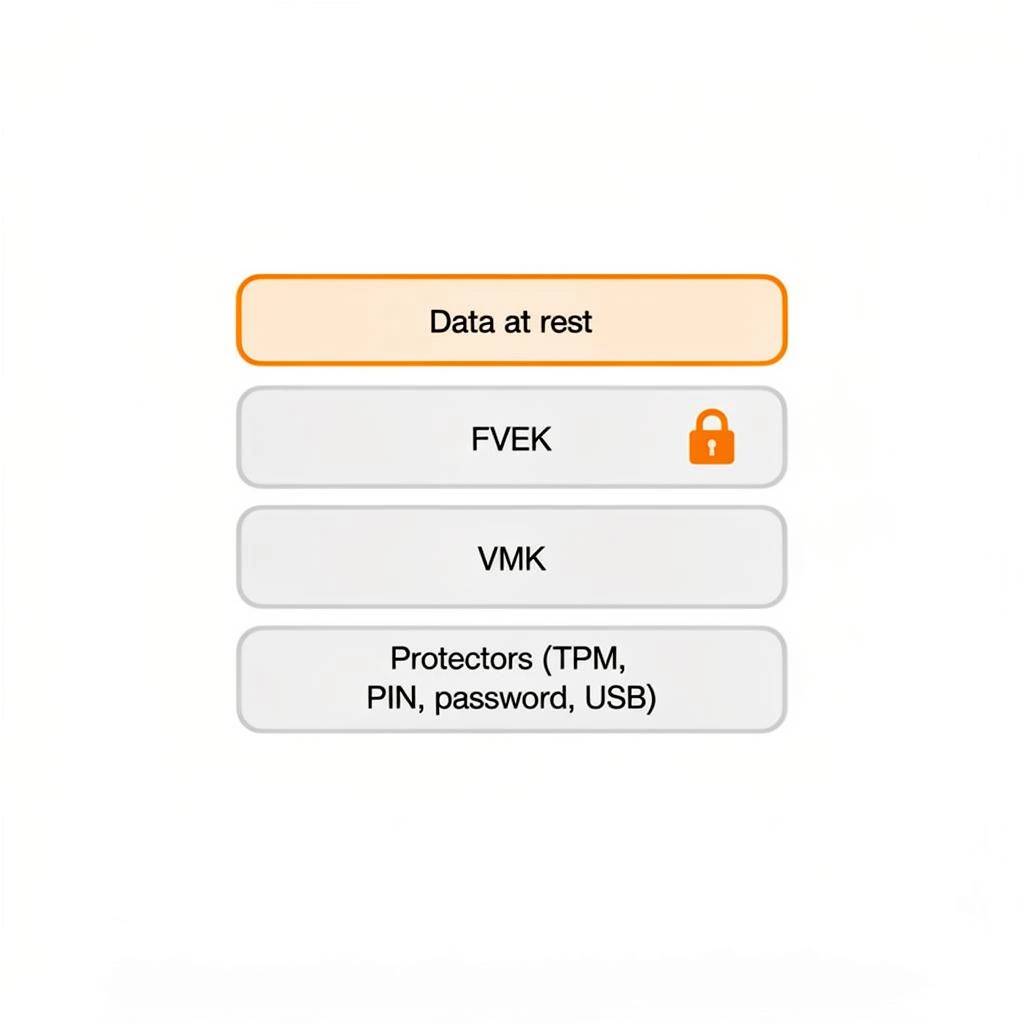
BitLocker uses layered keys. The data on disk is encrypted with a Full Volume Encryption Key (FVEK), and that key is itself protected by a Volume Master Key (VMK), which is unlocked by one or more key protectors such as the TPM, a PIN, a password, or a startup key.
01
02
03
Then it gets out of the way
Once unlocked, the machine behaves normally. BitLocker protects data at rest, not data already available to a signed-in user or malware running in that session.
A key encrypts the disk
A key encrypts the disk. BitLocker uses the FVEK to encrypt and decrypt data as it is read and written.
A second key locks the first
A second key protects the first. The VMK secures the FVEK and is what the unlock method actually releases.
The system checks itself at boot
The system validates boot integrity. With TPM and Secure Boot, Windows can detect significant boot-path changes and may require the recovery key before startup continues.
04
Ways to unlock a BitLocker drive
Different unlock methods trade convenience for security. For mobile devices, portable workstations, and executive laptops, the safer baseline is usually TPM plus PIN rather than TPM-only.

TPM-only
Boots silently with no user input. Fine for low-risk desktops; weaker for laptops since possession of the device is enough to reach the login screen.

USB startup key
Uses a USB stick as the unlock token. Useful when a device lacks a TPM, but the key must be stored separately from the device. Remember that USB sticks fail eventually. Keep backups.


TPM + PIN
Requires a short PIN at boot before the OS loads. The recommended baseline for portable devices and anything carrying sensitive data.

Password / BitLocker To Go
Used mainly for USB drives and external disks via BitLocker To Go, so they can be unlocked on other Windows machines.
Convenient
Recommended
Niche
Removable Media
For most businesses, a minimum startup PIN policy is worth enforcing on laptops. The exact number depends on risk tolerance, but a short, memorable PIN is still materially better than TPM-only on a device that leaves the building regularly.
What it solves — and what it doesn't
 What it does not protect against
A malicious user who is already logged in to Windows.
Phishing, malware, ransomware, session theft, or stolen credentials.
Files copied to unencrypted USB drives, personal cloud storage, or unmanaged email destinations.
Poor operational practices such as exposed recovery keys or weak unlock configuration on laptops.
Advanced attacks against a running, already-unlocked machine, because BitLocker protects stored data rather than every other state of the system.
 What BitLocker handles well
Lost or stolen laptops become much harder to turn into readable data.
Removed drives from retired or repurposed computers reveal far less to an attacker.
Encryption-at-rest requirements in many compliance frameworks are easier to satisfy when BitLocker is deployed consistently.
The user experience is usually low-friction once it is configured correctly.
Recovery keys are the whole game
BitLocker's greatest operational strength and its biggest failure point are the same thing: the recovery key. If a legitimate user gets locked out and the organization cannot retrieve the recovery key, the data may be unrecoverable; if unauthorized people can read recovery keys freely, the protection is significantly weakened.
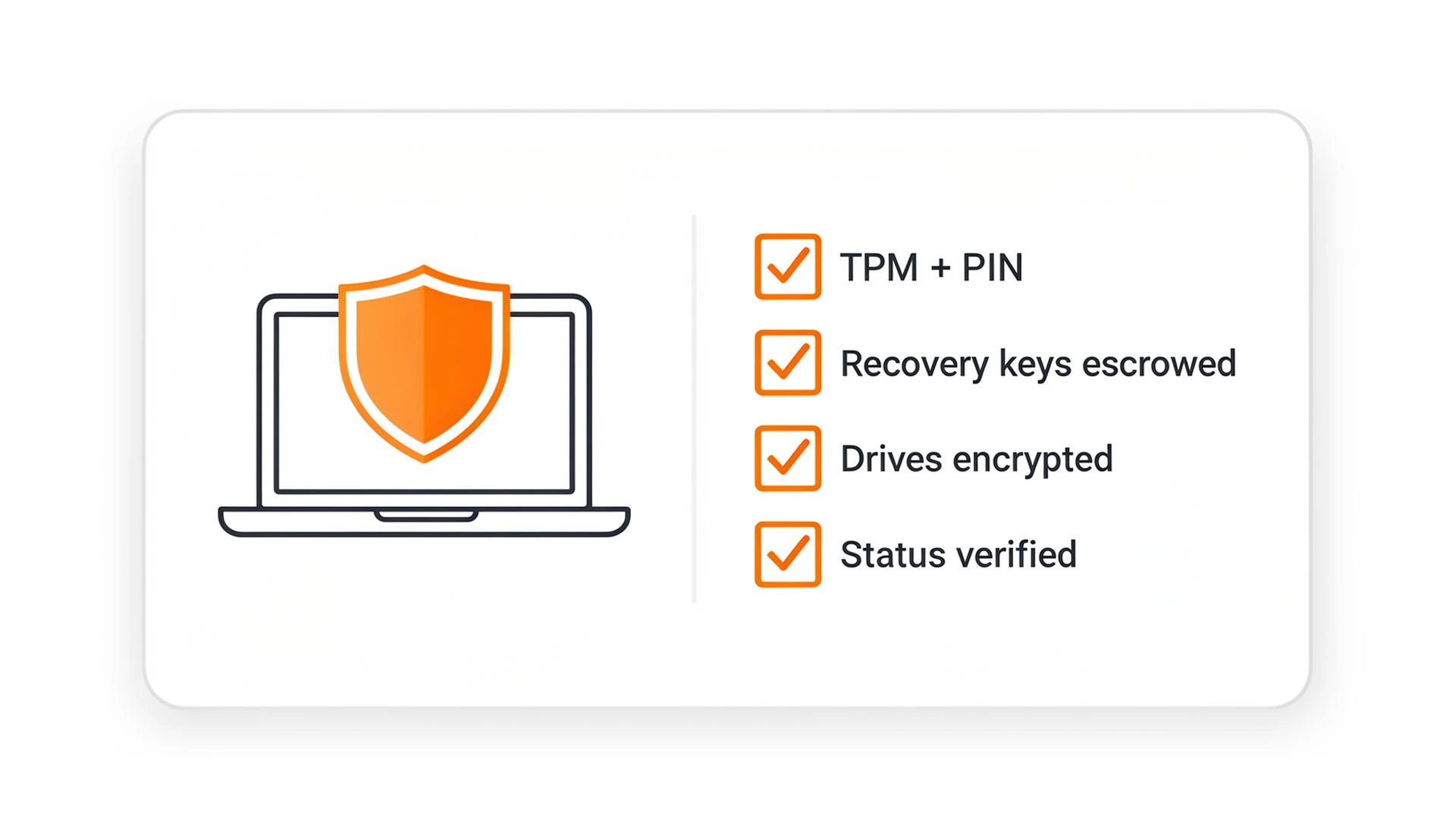
A sensible BitLocker deployment
A short checklist that covers most organizations without over-engineering it.
 Require BitLocker on all company laptops and portable workstations.
Auto-escrow recovery keys to Entra ID or Active Directory.
Enforce BitLocker To Go on any removable media that can hold company data.
Pair BitLocker with Secure Boot and current firmware.
Enable BitLocker on fixed data drives, not just the OS volume.
Restrict who can view recovery keys and log every access.
Verify encryption status in your endpoint management tool, not user trust.
Document the recovery process before you need it at 2am.
Want a bit more detail?
Optional reading for anyone who wants to go a step deeper into how BitLocker works and where it fits in layered defenses.
Usually not in a noticeable way on modern hardware. Microsoft positions BitLocker as a standard part of Windows security, and the practical impact is generally low when devices have current CPUs and proper storage drivers.
No. BitLocker is very good at protecting data on a lost or stolen device, but it does not replace MFA, endpoint security, patching, backups, email security, or identity controls.
They normally need the BitLocker recovery key to regain access. That is why recovery-key escrow and documented support procedures matter as much as the encryption setting itself.
That often happens because the platform detected a meaningful boot or hardware change, firmware update, TPM event, or another condition that caused Windows to distrust the expected startup state.
The encryption itself is considered strong, and realistic attacks usually target weak deployment choices or exposed key material rather than defeating AES directly. Common failure modes are TPM-only on mobile devices, poor recovery-key storage, or attacks against systems that are already running and unlocked.

