
Attackers are getting creative with how they get around your defenses, and this recent Microsoft 365 phishing attempt we investigated is a perfect example.
In this post, we’ll walk through the attack step‑by‑step using the screenshots from our analysis and explain how it worked, why it’s dangerous, and what your business can do to stay ahead of similar threats.
Step 1 – A Real DocuSign Email Used as the Lure
The attack started with a legitimate DocuSign notification email sent to the victim. The message looked routine: a confidentiality agreement to review and sign, coming from what appeared to be a normal business contact.
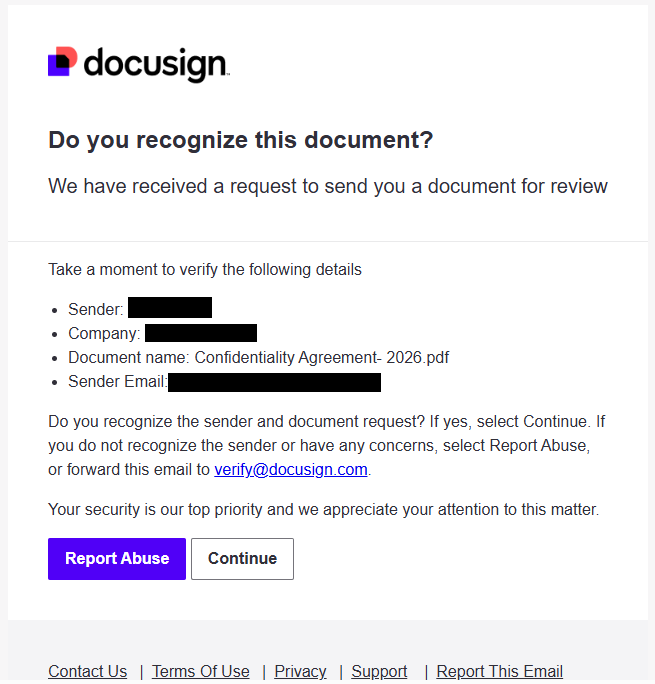
What made this email suspicious on closer inspection was the sender context. The domain in the sender address raised red flags and did not appear to belong to the supposed company, which is consistent with how compromised accounts are often abused in DocuSign‑themed phishing campaigns. Even though the DocuSign message itself was genuine, threat actors likely used an already‑compromised email account to initiate the signing workflow and deliver their trap.
Because DocuSign is widely used in business and people are conditioned to click “Review document,” attackers regularly piggyback on its brand and workflows to gain trust.
Step 2 – A QR Code That Pushes You to Your Phone
When the victim clicked to view the document, the “document” was actually a single page containing a large QR code over a blurred background, with a prompt along the lines of “Please scan with your phone to view.” This entire page was essentially an image designed to look like a protected document preview.
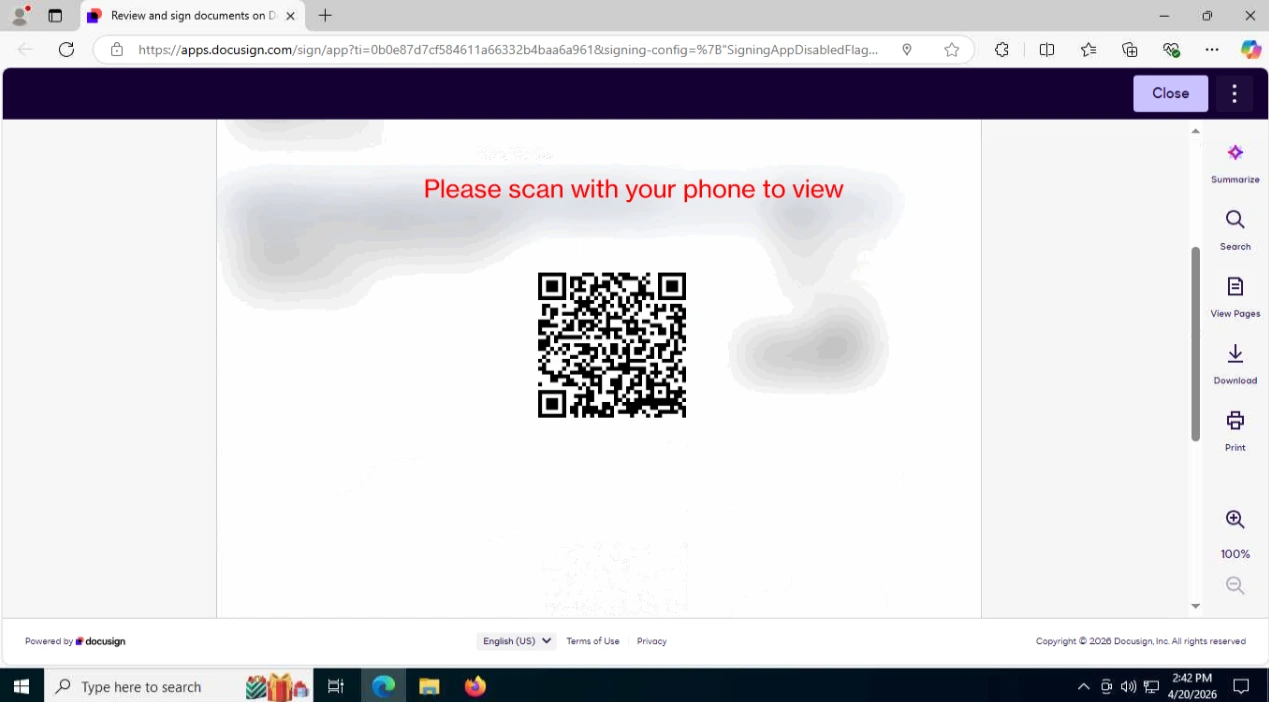
The attacker’s goal here is simple: move the victim from a relatively well‑protected corporate workstation to a mobile device, where URL filtering, secure DNS, EDR, and other enterprise controls are often weaker or completely absent. Security researchers have observed that QR‑code‑based phishing (“quishing”) is increasingly used for exactly this reason. DocuSign itself warns that QR codes are being abused in phishing and recommends extra scrutiny before scanning any such code from an email.
Step 3 – Safe Analysis: Decoding the QR Code and Hitting Cloudflare
Instead of scanning the QR code with a phone, we captured a screenshot and decoded it using an online QR scanner, then opened the resulting URL in a sandboxed environment. This allowed us to safely follow the full attack chain without risking any production systems.
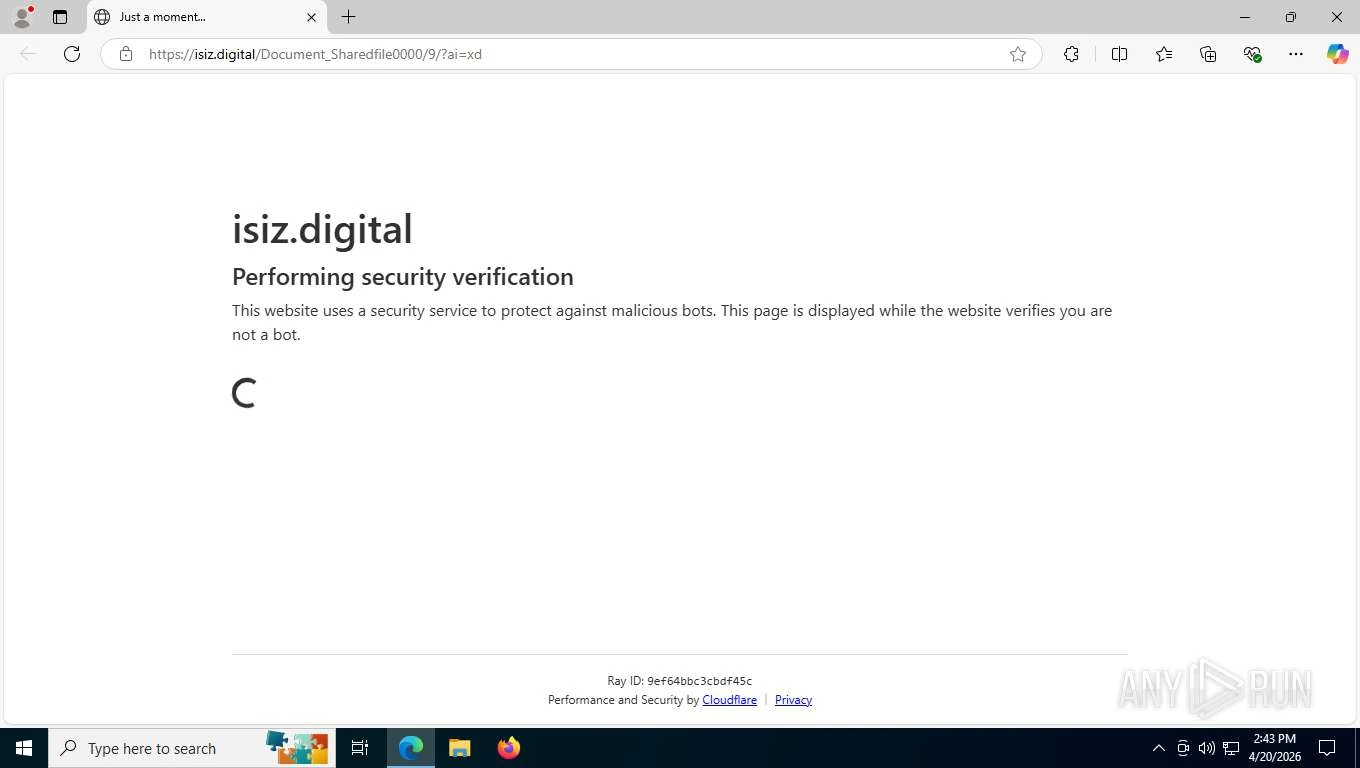
The QR code resolved to a domain controlled by the attacker. Before loading the actual phishing page, the site presented a Cloudflare “Performing security verification” page. Cloudflare is a legitimate content‑delivery and security service, but threat actors increasingly hide their infrastructure behind services like this to:
Filter out automated scanners and some security tools.
Restrict access by country or by user‑agent, making analysis more difficult.
Recent research into advanced phishing kits shows that Cloudflare or similar CAPTCHA/verification gates are commonly used to shield phishing infrastructure and ensure only real users reach the payload page.
Step 4 – A Fake Microsoft 365 Login with an Adversary‑in‑the‑Middle Twist
Once past the Cloudflare check, the victim is presented with what appears to be a standard Microsoft 365 single sign‑on page. At first glance, it looks authentic: Microsoft logo, familiar layout, and the usual “Sign in” prompt.
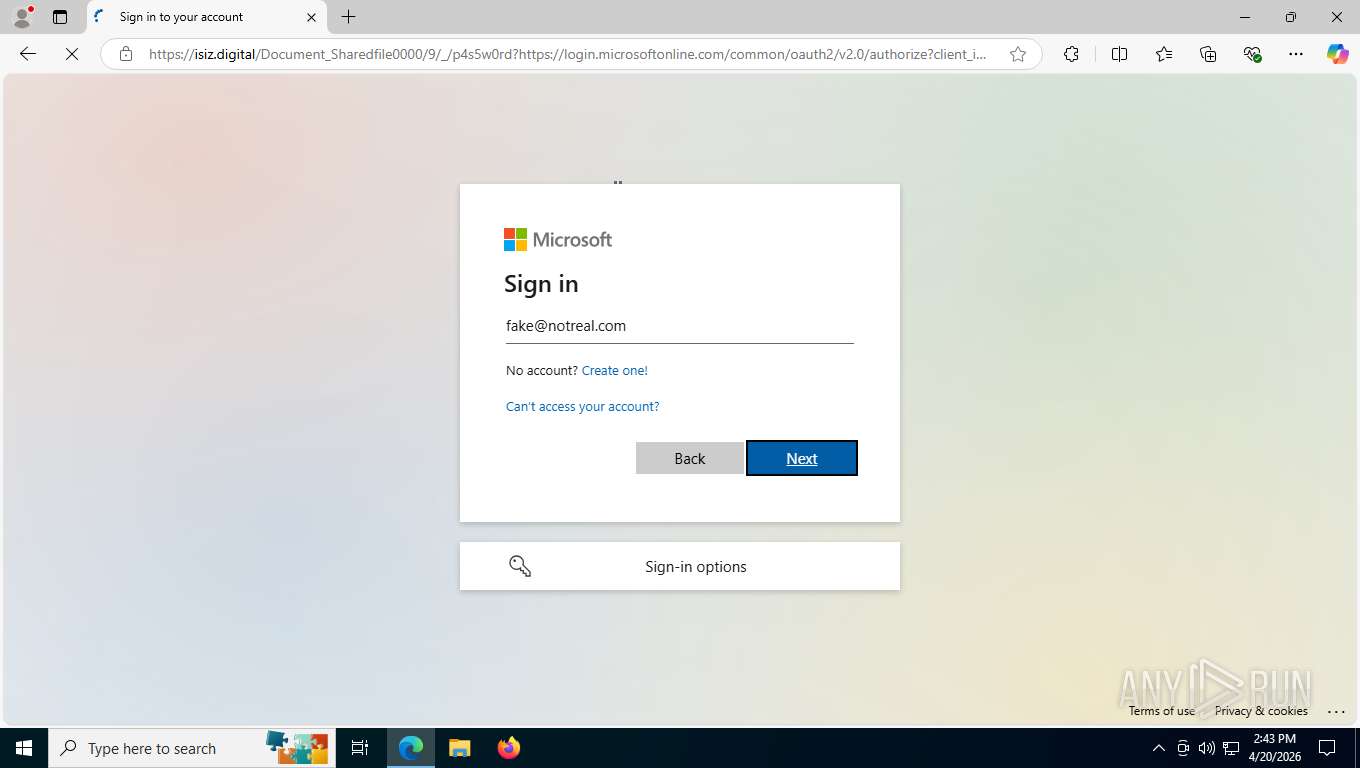
However, the browser’s address bar tells the real story. The page is being served from the attacker’s domain, not a microsoftonline.com or microsoft.com host, even though the URL includes a Microsoft OAuth2 authorization path as a parameter. This is a hallmark of an adversary‑in‑the‑middle (AiTM) proxy attack.
In an AiTM attack, the phishing site sits between the user and the real Microsoft login service, relaying traffic in real time. When the victim enters their credentials (and even MFA codes), the proxy captures them and steals the associated session cookies, allowing the attacker to log in as the user while bypassing multifactor authentication and other access controls.
This attack also abused Microsoft OAuth URLs as part of the redirect chain, which is a known tactic for hiding malicious AiTM links behind otherwise legitimate‑looking Microsoft authorization flows.
Step 5 – Testing with Fake Credentials Shows the Proxy in Action
To confirm what was happening, we entered fake credentials into the phishing page from within the sandbox. After submitting them, the site behaved exactly like a real Microsoft 365 login: it rejected the credentials and displayed an “incorrect password” message.
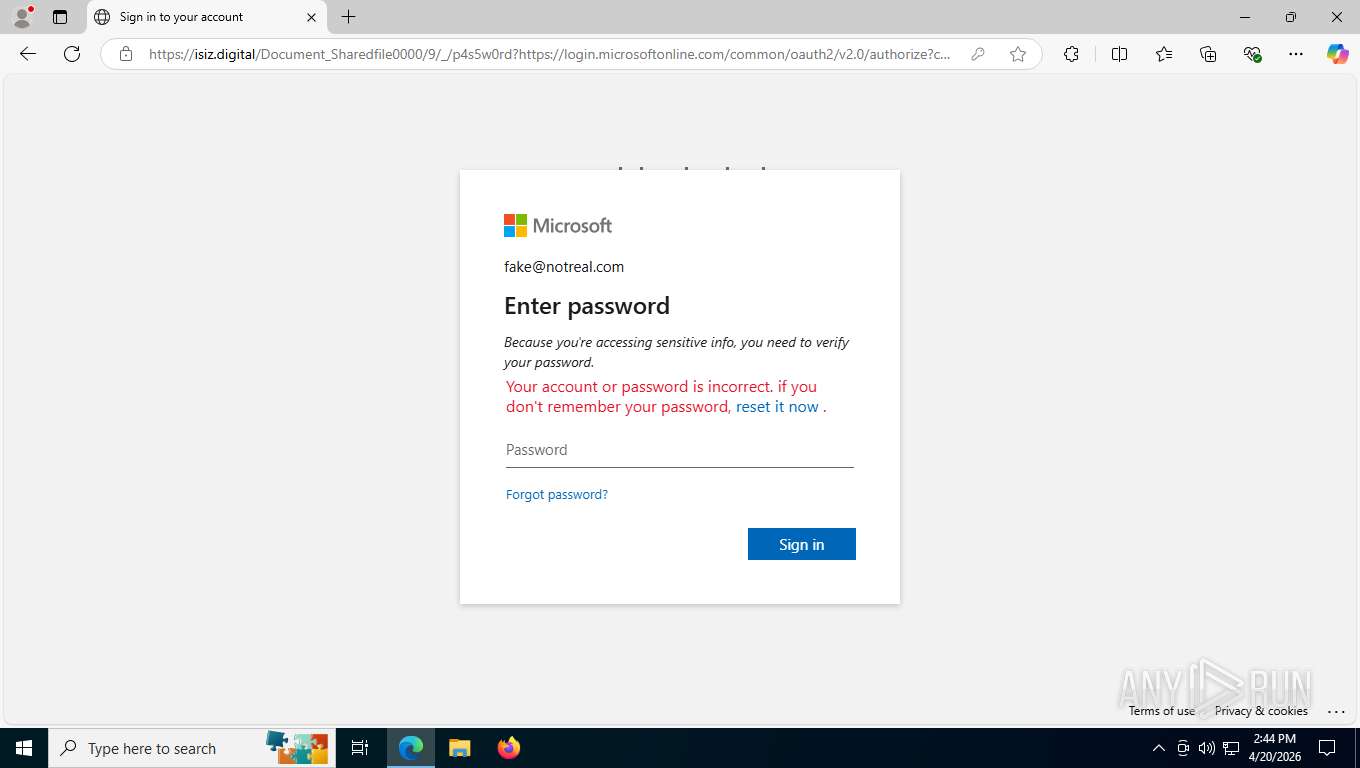
Behind the scenes, these credentials were being forwarded through the attacker’s proxy to the real Microsoft authentication service. This behavior is consistent with documented AiTM phishing kits that relay login attempts to the legitimate provider in real time, both to validate credentials and to keep the user experience convincing.
The fact that our bogus login produced a realistic error from Microsoft strongly indicates the presence of a live AiTM relay rather than a simple static credential‑harvesting form.
Step 6 – The Full URL Tells the Whole Story
Pulling back the full address from the attack page makes the technique even clearer. The URL:
Begins with the attacker’s domain.
Then appends a Microsoft OAuth2 authorization URL as a parameter, including a client ID and other query string values.
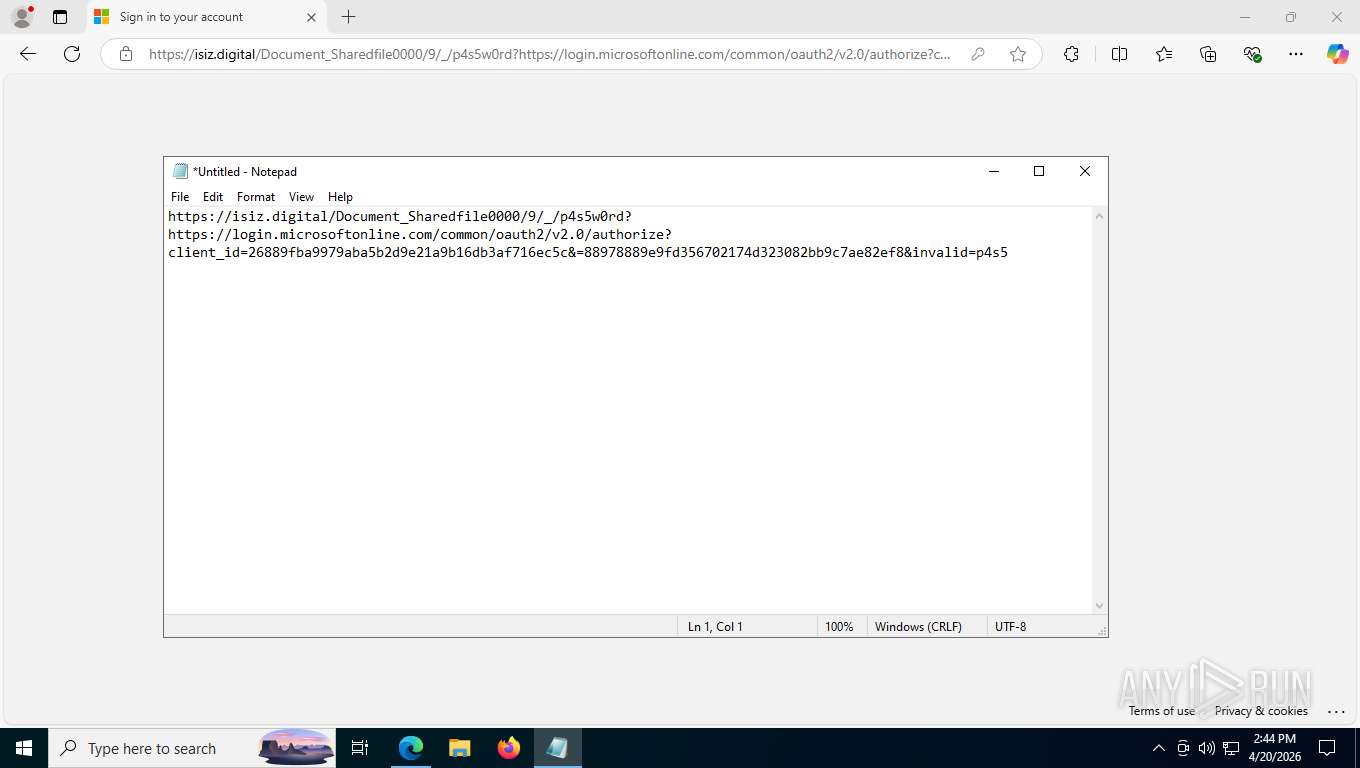
This structure aligns with recently observed campaigns where adversaries construct URLs that blend attacker‑controlled domains with legitimate Microsoft OAuth endpoints to obscure the true destination and facilitate AiTM credential theft.
If an unsuspecting user completes this flow, the attacker can capture both username and password, and in many cases, tokens or cookies that allow long‑term access to Microsoft 365 accounts. Even if MFA is enabled.
What We Did Next
After confirming the malicious behavior:
We reported the document to DocuSign so that it could be investigated and removed from their platform. DocuSign encourages users and security teams to forward suspicious messages to their abuse address for exactly this reason.
We blocked the attacker’s domain across our managed security stack for protected clients to prevent anyone from accidentally reaching the phishing site.
We documented the indicators of compromise and updated our internal detection rules to better flag similar DocuSign‑ and QR‑code‑based lures in the future, in line with broader industry observations about the growth of “quishing” and AiTM campaigns.
How to Protect Your Organization from Similar Attacks
Here are practical steps we recommend based on this incident and current research:
Train users that QR codes in emails and PDFs are high‑risk. Encourage employees not to scan QR codes from work emails with personal phones and to verify the sender and content first.
Teach everyone to check the browser address bar. Even if the page looks exactly like Microsoft 365, any login screen hosted on an unfamiliar domain should be treated as malicious.
Enforce phishing‑resistant authentication and conditional access. Device‑code and AiTM phishing campaigns show that legacy MFA is not enough; organizations should move toward stronger, phishing‑resistant methods and robust conditional access policies.
Use sandboxing and safe investigation practices. As in this case, security teams should analyze suspicious content in isolated environments, especially when following QR codes or links that may involve advanced phishing kits.
Partner with a managed security provider. Modern phishing operations increasingly use QR codes, CAPTCHAs, Cloudflare, OAuth abuse, and AiTM proxies that are designed to evade traditional filters. A dedicated team can monitor for these patterns, rapidly block new attack domains, and coordinate takedowns when abuse is detected.
If your organization uses Microsoft 365, DocuSign, or other cloud services and you’d like a review of how well you’re protected against these newer phishing techniques, Argus Cybersecurity and Support can help evaluate your current defenses and close the gaps before an attacker finds them.